
Are Microsoft Teams files stored in SharePoint with Business Premium?
Yes. In Microsoft 365 Business Premium, files uploaded to a Microsoft Teams channel are stored in the team’s associated SharePoint site, while files shared in one-to-one or group chats are generally stored in the sender’s OneDrive for Business.
Microsoft Teams is primarily a collaboration interface over Microsoft 365 storage services, rather than a separate document repository. The location of a file depends on the type of Teams conversation in which it was uploaded and the channel structure used by the organisation.
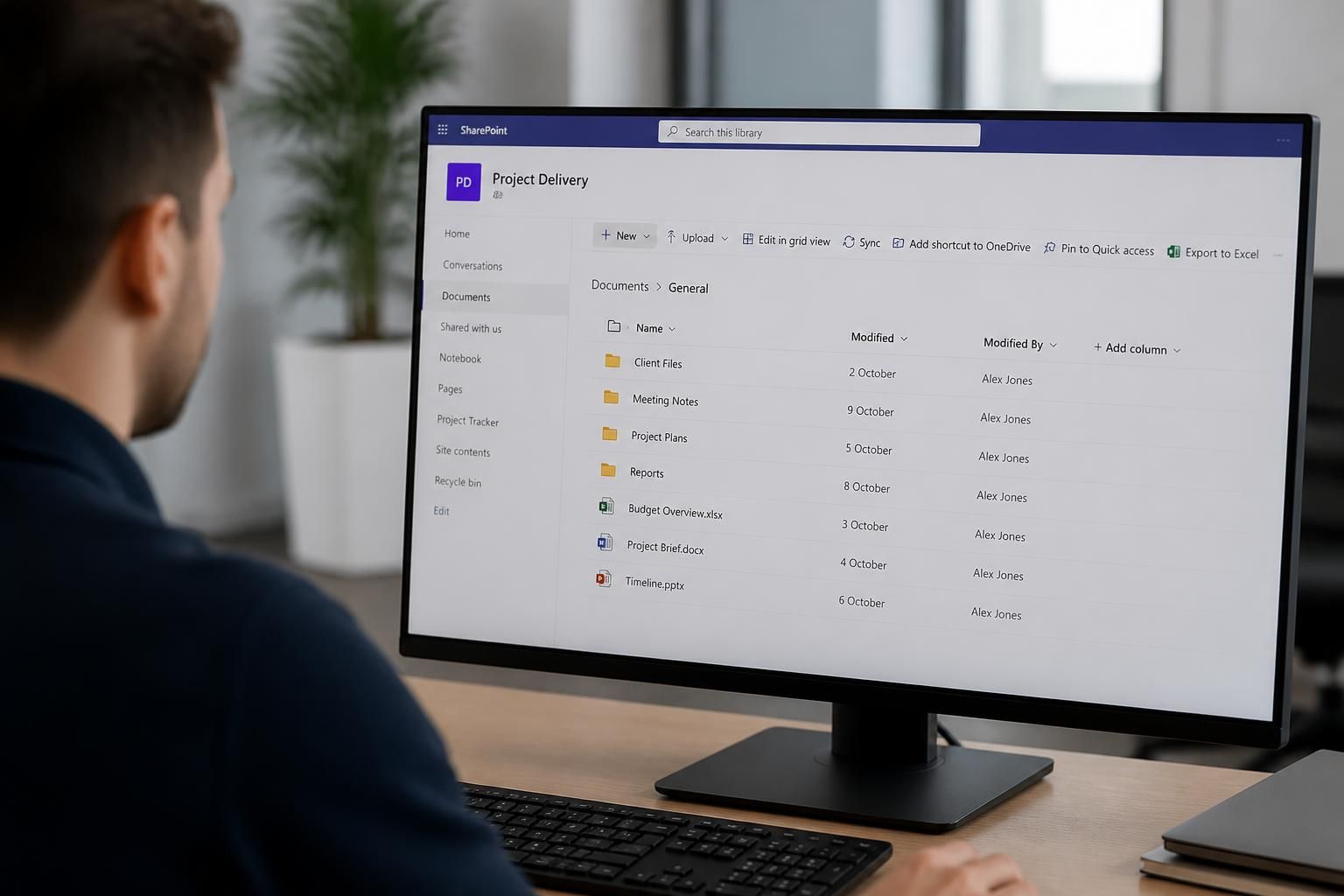
For files in a standard channel, Teams presents a folder from the SharePoint site connected to the team. Each standard channel normally has its own folder within the site’s document library. This means the file can also be managed through SharePoint, subject to the permissions and policies applied to that site.
Private and shared channels use a different arrangement from standard channels. Their files are held in SharePoint sites created for those channels, with access restricted to the relevant channel members. These sites should be included in an organisation’s SharePoint administration, backup planning, retention policies and storage reviews rather than treated as ordinary folders within the main team site.
Teams also uses OneDrive for files uploaded in chat. This includes many one-to-one and group chat scenarios, where the person who uploads the file is normally its owner and shares access with the other participants. If that person’s account, permissions or sharing link changes, access to the file can change too. Important chat-based documents may therefore need to be moved or copied into an appropriate SharePoint location for longer-term business ownership.
Meeting recordings follow a similar location-based model. A recording associated with a channel is generally managed with the channel’s SharePoint content, while recordings from other meeting types are commonly stored in the organiser’s or recorder’s OneDrive. The exact location can depend on how the meeting was created and recorded, so users should check the file details rather than assume every recording is held in the same place.
Microsoft 365 Business Premium provides the Microsoft 365 services that support this arrangement, but the licence does not merge all Teams files into one storage pool or remove the distinction between SharePoint and OneDrive. Storage, ownership and access remain connected to the relevant team, channel, site, user and Microsoft 365 policies.
In practical terms, this affects several areas of file management:
- Permissions: Teams membership usually determines access to team content, but additional SharePoint permissions and sharing links can create exceptions. Direct permissions should be reviewed carefully to avoid granting broader access than intended.
- Version history: SharePoint files can retain earlier versions, depending on the library settings and retention configuration. Version history supports recovery but can also contribute to storage use.
- Deletion and recovery: Removing a file from Teams generally removes it from the underlying SharePoint or OneDrive location. Recycle bin and retention settings determine what recovery or preservation options remain.
- Synchronisation: SharePoint libraries can be synchronised to users’ devices through OneDrive. This improves access to working files, but local copies must be protected and included in device security and access-control procedures.
- External sharing: Sharing a Teams or SharePoint file with someone outside the organisation is governed by Microsoft 365 sharing settings, the site’s configuration and the permissions applied to the file or folder.
- Storage administration: Administrators need to monitor the SharePoint sites connected to teams, the OneDrive accounts used for chat files and the policies that affect retention, versions and deleted content.
A sensible structure is to use standard or private channels for defined work areas, keep long-term business records in controlled SharePoint libraries, and avoid relying on individual OneDrive accounts as the sole location for important shared information. Naming conventions, ownership reviews and clear rules for creating teams and channels can prevent duplicate documents and make content easier to find.
For a business using Business Premium, the key question is not simply whether Teams files are in SharePoint. It is whether each type of content is stored in the right Microsoft 365 location, with appropriate permissions, retention settings, recovery arrangements and user access controls. S2 Technology Group can advise organisations around Stourbridge, Kinver, Wordsley, Kingswinford, Kidderminster, Halesowen and Dudley on structuring and securing Microsoft 365 file storage as part of a wider managed IT and cyber security approach.
The most reliable way to confirm where a Microsoft Teams file is stored is to open its underlying location rather than relying on the Teams conversation alone. From a channel’s Files tab, use Open in SharePoint to view the document library, site and folder path containing the file. For a file shared in chat, the equivalent location will usually be the uploader’s OneDrive for Business account.
Checking the underlying location is useful when reviewing ownership, permissions or retention. A Teams view may show who can currently access a document, but the SharePoint or OneDrive details identify the account or site responsible for managing it. This also helps distinguish a centrally managed team document from a file that is still tied to an individual user.
Before changing permissions or moving important content, check the file’s location, owner, sharing settings and version history in the relevant Microsoft 365 service. That approach provides a clearer record of how the document is governed under Microsoft 365 Business Premium.