

How can Microsoft 365 support resolve Teams access problems?
Microsoft 365 support can resolve Teams access problems by checking account status, licence assignment, sign-in permissions, Teams policies and device configuration. A structured review helps identify whether the issue affects one user, a group or the wider tenant, so the appropriate setting or account dependency can be addressed.
Microsoft 365 support resolves Teams access problems by separating the visible symptom from the underlying cause, then applying a controlled fix and verifying the result. Access may fail because of a team membership issue, guest-user restriction, identity synchronisation fault, security control, service incident, network condition or a problem confined to the Teams client. Each possibility requires different evidence, so support should avoid making repeated changes without first establishing the scope and cause.
Start by defining the affected access. The investigation should record the user, team or channel involved, the type of access expected and the exact error message. It is important to distinguish between being unable to sign in to Teams, seeing Teams but not a particular team, opening a team but not a channel, and being able to read content but not post or share files. Comparing the affected user with a colleague who has the intended access can reveal whether the problem is individual, membership-related or wider.
- One user is affected: examine that user’s identity record, group membership, authentication activity and recent account changes.
- Several users are affected: compare their common groups, locations, devices and access conditions to identify a shared dependency.
- A whole team or tenant is affected: check service health, administrative changes, synchronisation and organisation-wide controls before altering individual accounts.
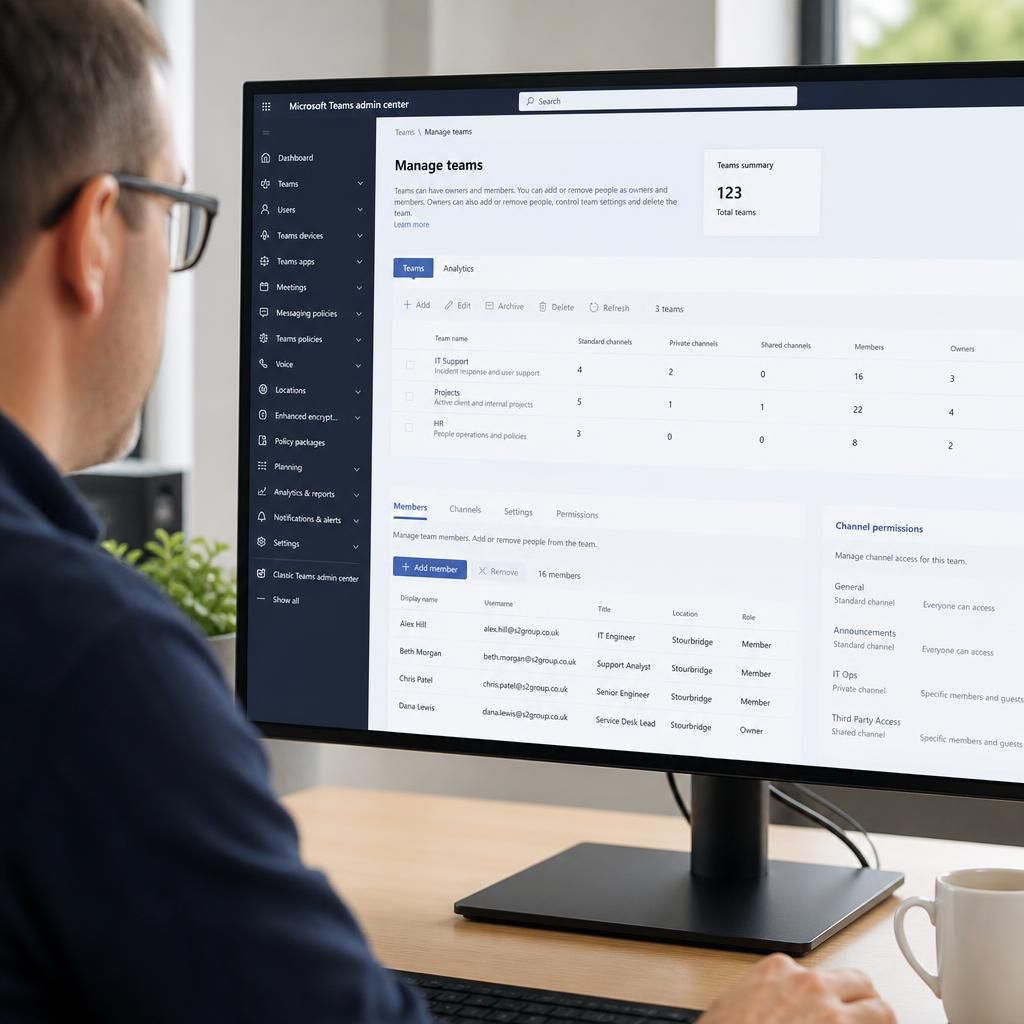
Check team and channel membership separately. A person may belong to the wider organisation but not to the relevant team. Private and shared channels also have membership arrangements that differ from standard channels, so access to the parent team does not necessarily provide access to every channel. Guest access introduces additional dependencies, including whether the external identity is recognised correctly, whether invitations have been accepted using the intended account and whether cross-organisation access is permitted.
Review identity and security dependencies. A user can appear correctly configured while still being prevented from accessing Teams by multifactor authentication requirements, conditional access conditions, an expired authentication session or a conflict between multiple signed-in identities. Sign-in and audit records can show whether the request reached the tenant, which control blocked it and whether the user authenticated with the expected account. These records provide a more reliable basis for remediation than asking the user to repeatedly retry the same action.
Rule out client and connectivity faults. If the same user can access Teams through the web but not through the desktop or mobile application, the likely issue is local to the client, its stored credentials, application state, device compliance or network path. Support can compare browser and application behaviour, confirm that the device is receiving current configuration, and check whether inspection, firewall or proxy controls are interfering with Teams traffic. Clearing application data or reinstalling the client should be considered only after evidence has been collected, because doing so can remove useful diagnostic information without addressing the underlying access control.
Use a controlled resolution process. A suitable sequence is:
- Capture the user, resource, error, time and affected access method.
- Check Microsoft 365 service health and recent administrative changes.
- Trace the relevant identity, group, guest or channel relationship.
- Review sign-in, audit and security records for a denied or incomplete request.
- Apply the smallest appropriate correction, such as restoring valid membership, correcting an identity relationship or addressing a client-side condition.
- Test the exact task that previously failed, rather than merely confirming that Teams opens.
- Document the cause, change and verification evidence for future incidents.
Testing should cover the original user and resource, and should confirm that the correction has not granted broader access than intended. Where a change affects groups, guest users or security controls, support should consider propagation and confirm the result after the relevant directory information has synchronised. Temporary workarounds should be recorded and removed when they are no longer needed, particularly if they weaken access restrictions.
Good Microsoft 365 support also looks for recurring causes. Repeated Teams access incidents may indicate unclear ownership of team membership, unmanaged guest accounts, inconsistent onboarding and offboarding, undocumented security exceptions or changes being made without review. Recording incidents by cause rather than only by user makes it possible to improve the underlying process and reduce future disruption. S2 Technology Group can provide this structured Microsoft 365 support as part of wider management of secure, dependable business technology.
A Teams licence can be assigned to a user while the Teams service plan within that licence is disabled. Microsoft 365 support should therefore check both the assigned licence and the individual service plans enabled for the account. Recent changes to licence groups can also take time to appear consistently, so the support record should note when the assignment changed and whether the user’s licence state has synchronised.
Where licensing is managed through groups, review the source group rather than making an isolated user-level change. Conflicting group assignments may enable and disable related services in different ways, while a direct assignment can create an exception that is later removed by automated licence management. Correcting the governing assignment provides a more durable resolution and helps keep Teams access aligned with the organisation’s licensing model.