
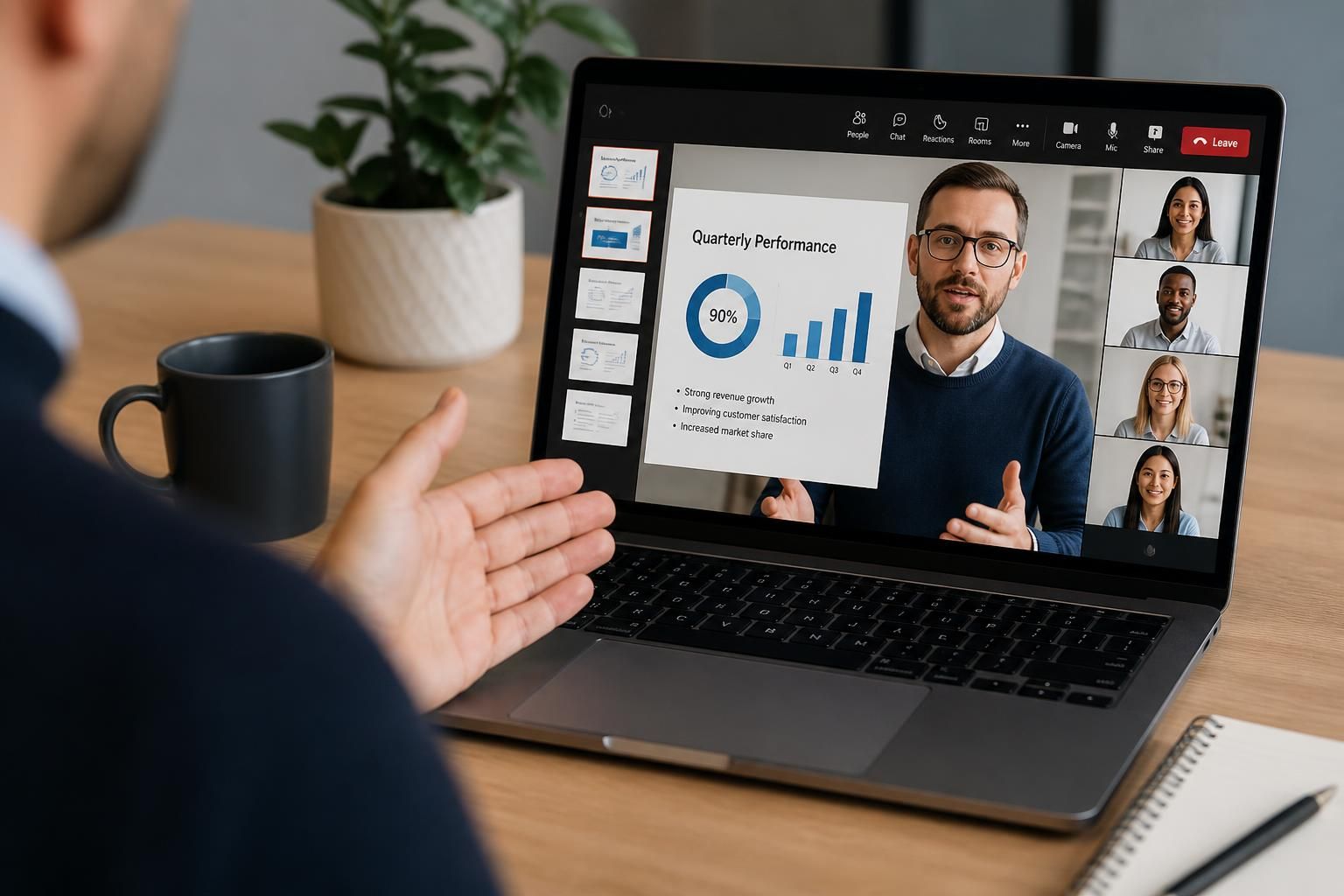
Can Microsoft Teams training include PowerPoint presentation delivery?
Yes. Microsoft Teams training can include PowerPoint presentation delivery, covering how to share slides, manage presenter controls, use meeting features appropriately and collaborate with attendees while presenting.
Microsoft Teams training can include the skills needed to deliver PowerPoint presentations effectively in online and hybrid meetings. The presentation element can cover preparation, delivery, audience engagement, accessibility, technical checks and the practical decisions that affect how clearly a presentation is received.
A well-designed course should connect PowerPoint preparation with the way a Teams meeting works. This may include:
- Structuring slides for an online audience, where text that is readable in a room may be too small or dense on screen.
- Using concise slide content, clear visual hierarchy and speaker notes to support a natural explanation rather than reading every word.
- Planning transitions between the presentation and discussion so that questions, explanations and demonstrations do not disrupt the overall flow.
- Adapting delivery for hybrid meetings, where some attendees are in the same room as the presenter and others are joining remotely.
- Considering accessibility, including readable contrast, meaningful slide order, plain language and verbal explanation of important visual information.
Training can also address the presenter’s working environment. Before a session, learners should know how to check their camera position, microphone, lighting, internet connection and desktop notifications. A short technical check helps separate presentation problems from meeting-technology problems. It is also useful to identify which applications, files or browser tabs will be visible during the meeting and to close anything that could expose confidential business information or distract attendees.
The course may explain the difference between presenting from a prepared PowerPoint file and using a conventional screen view. PowerPoint Live can provide presentation-specific features, such as access to notes and a more structured slide experience, while other approaches may be more suitable for demonstrations, software walkthroughs or content that is not held in PowerPoint. The appropriate method depends on the purpose of the session, the required presenter view and how much interaction is expected.
Practical exercises are important because presentation delivery involves more than knowing where a function is located. A learner might prepare a short presentation, deliver it to a test audience, handle an interruption, move to a question-and-answer section and review the result afterwards. Exercises can be adapted for common business situations such as a client briefing, internal update, training session, project review or sales presentation.
Feedback should examine both technical operation and communication quality. Useful points to review include:
- Whether the opening explains the purpose and expected outcome of the presentation.
- Whether the pace allows remote attendees to follow the content.
- Whether the presenter maintains engagement without creating unnecessary interruptions.
- Whether questions are acknowledged and handled in an organised way.
- Whether the closing summarises decisions, actions or next steps clearly.
Teams training can also include guidance on meeting roles and presentation permissions. Depending on the organisation’s configuration, a meeting organiser may need to decide who can present, whether attendees can interrupt, and how content is managed when several people contribute. These settings should be explained in the context of meeting governance and confidentiality, rather than treated as isolated technical options.
For organisations developing a course, the level of PowerPoint presentation training should match the learners’ responsibilities. New users may need a guided exercise covering the complete presentation workflow. Experienced users may benefit more from coaching on hybrid delivery, accessibility, audience management and handling technical interruptions. A needs assessment can therefore determine whether the course should focus on basic confidence, consistent internal delivery or more advanced presentation scenarios.
The result is a broader form of Microsoft Teams training that treats presentation delivery as a combination of communication, preparation and technology use. It can help learners understand not only which Teams functions are available, but also when to use them and how their choices affect the audience’s ability to follow the presentation.
Microsoft Teams training can include guidance on controlling the audience’s slide view during a PowerPoint presentation. With PowerPoint Live, attendees may be able to move through the deck independently while the presenter continues speaking, so learners should understand how to bring everyone back to the current slide when necessary.
This is particularly useful during detailed discussions, demonstrations and question-and-answer sessions. Training can show presenters how to pause on a specific slide, return to the main presentation position and confirm that attendees are viewing the intended content. It can also cover how to move between slides without losing track of the meeting discussion, helping the presentation remain coherent when participants are reviewing material at their own pace.
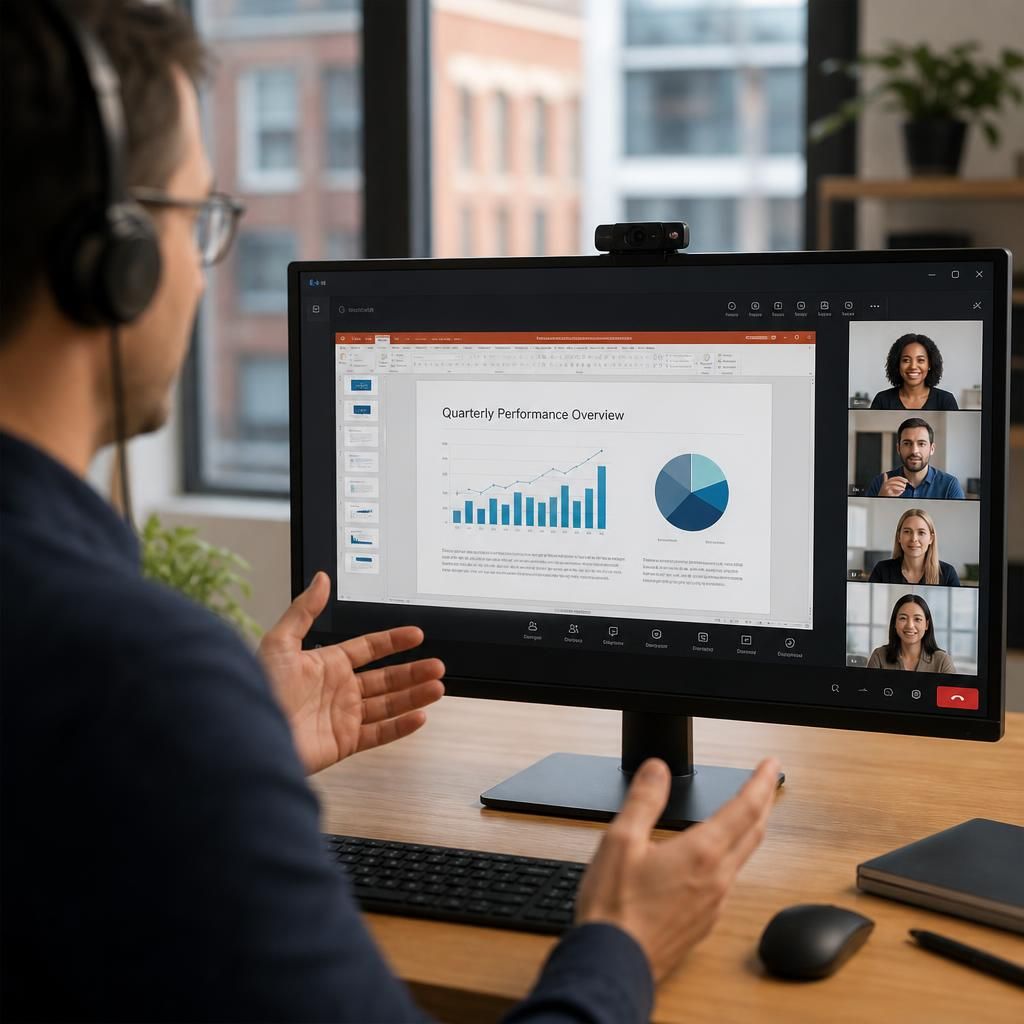
Explore Microsoft Teams Training for PowerPoint Presentations
If your organisation is assessing Microsoft Teams training requirements, discuss the presentation scenarios, learner roles and meeting policies the course should address with S2 Technology Group. This can help establish whether PowerPoint delivery should form part of a wider Teams and SharePoint training programme.