
What happens to mobile devices during Microsoft 365 migration?
During a Microsoft 365 migration, mobile devices may need their email accounts, authentication settings and security or management profiles reconfigured. Each device should then be tested for email, calendar, contacts and any required Microsoft 365 apps so users can reconnect securely without relying on outdated settings.
During a Microsoft 365 migration, mobile devices usually remain physically unchanged, but their connection to the organisation’s Microsoft 365 environment must be transferred. The main effects are removal of the old account association, addition of the new one, possible re-enrolment in device management, and checks that locally stored information and business applications continue to behave as intended.
The device migration process commonly includes the following stages:
- Reviewing the device estate: The organisation identifies which phones and tablets access Microsoft 365, whether they are company-owned or personally owned, which operating systems they use, and whether they are managed centrally. This prevents unused or unknown devices from being carried into the new environment without review.
- Removing the old organisational connection: A device may still contain an account connection, application registration or work profile linked to the previous Microsoft 365 tenant. These connections are removed or replaced according to the migration plan. Leaving the old connection in place can cause repeated prompts, access to the wrong mailbox or conflicting organisational policies.
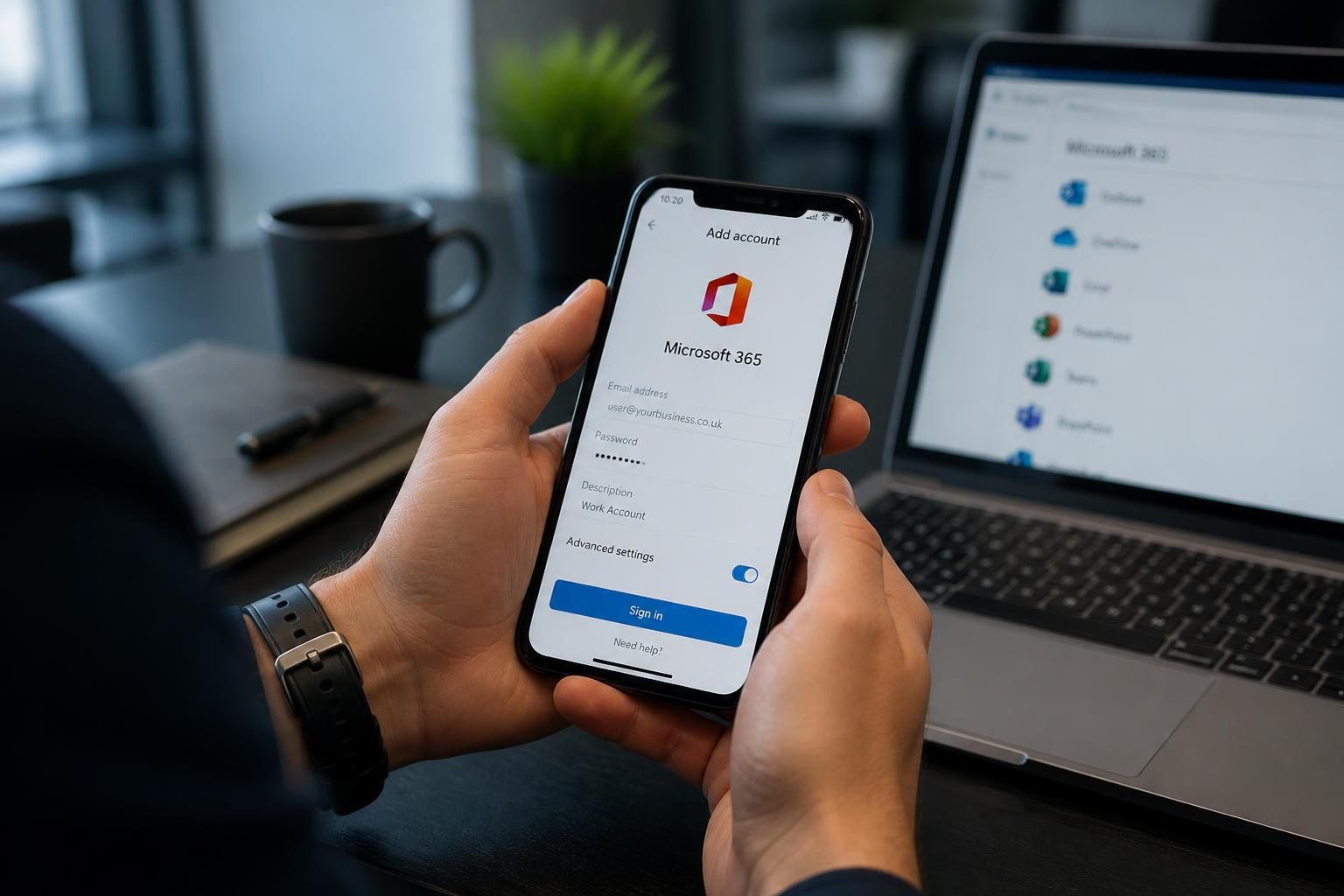
- Adding the new account: Users are normally guided through adding their new organisational account to the relevant mobile applications. This can affect applications used for mail, files, meetings, collaboration and document editing. The precise steps depend on the application and the organisation’s chosen configuration.
- Checking device enrolment: Where mobile device management is used, the device may need to be enrolled in the destination environment. On a company-owned device, this could involve applying a new work profile or management relationship. On a personally owned device, the organisation may use a more limited work container so that business information is managed without unnecessarily controlling personal content.
- Assessing local data: Mobile applications can hold offline copies, downloaded attachments, recently used files and cached information. These items are not automatically equivalent to the master data held in Microsoft 365. Before removing an old account, the migration plan should identify whether anything needs to be saved, synchronised or deliberately removed from the device.
Company-owned devices can usually be prepared as part of a centrally managed rollout. Personally owned devices require more careful communication because removing a work account or applying a new work profile should not unintentionally affect personal photographs, messages, contacts or applications. The organisation should explain exactly what administrators can manage and which data remains private.
Mobile applications may also behave differently after the tenant changes. A user could remain signed in to an old account inside an application, see a mixture of personal and organisational accounts, or find that a file opens under the wrong profile. A controlled sign-out and sign-in sequence, followed by removal of obsolete accounts, helps establish a clear connection with the destination environment. Applications that rely on saved links, shared folders or organisational policies should be checked individually rather than assumed to have followed the user automatically.
Migration planning should account for different device conditions. A recently replaced handset, an unsupported operating system, a device with limited storage, and a phone that has not connected to the organisation for some time may each require a different treatment. Some devices may be retired instead of migrated, particularly where they cannot meet the destination environment’s requirements or are no longer used by an active member of staff.
Testing should include more than opening an application. A practical test checks that the user can access the required business information, open and save documents, use shared resources, receive relevant notifications and work correctly when the device changes between mobile data and Wi-Fi. If the organisation uses restrictions based on device status, the test should also confirm that an approved device is treated correctly and that an unapproved device is handled according to policy.
Users should receive clear instructions before the change, including what they need to do with the old account, whether they should keep the device connected during the transition, and where to report a problem. Instructions should distinguish between company-owned and personal devices and should warn users not to delete local information that has not been checked. A small pilot involving representative device types can expose application, operating system and enrolment issues before the wider rollout.
After migration, records should be updated so the organisation knows which devices are connected to the new environment and which old registrations can be removed. Any device that is lost, replaced, retired or no longer assigned to a user should be dealt with separately. This keeps the mobile estate accurate and reduces the risk of dormant device records creating confusion during future access reviews.
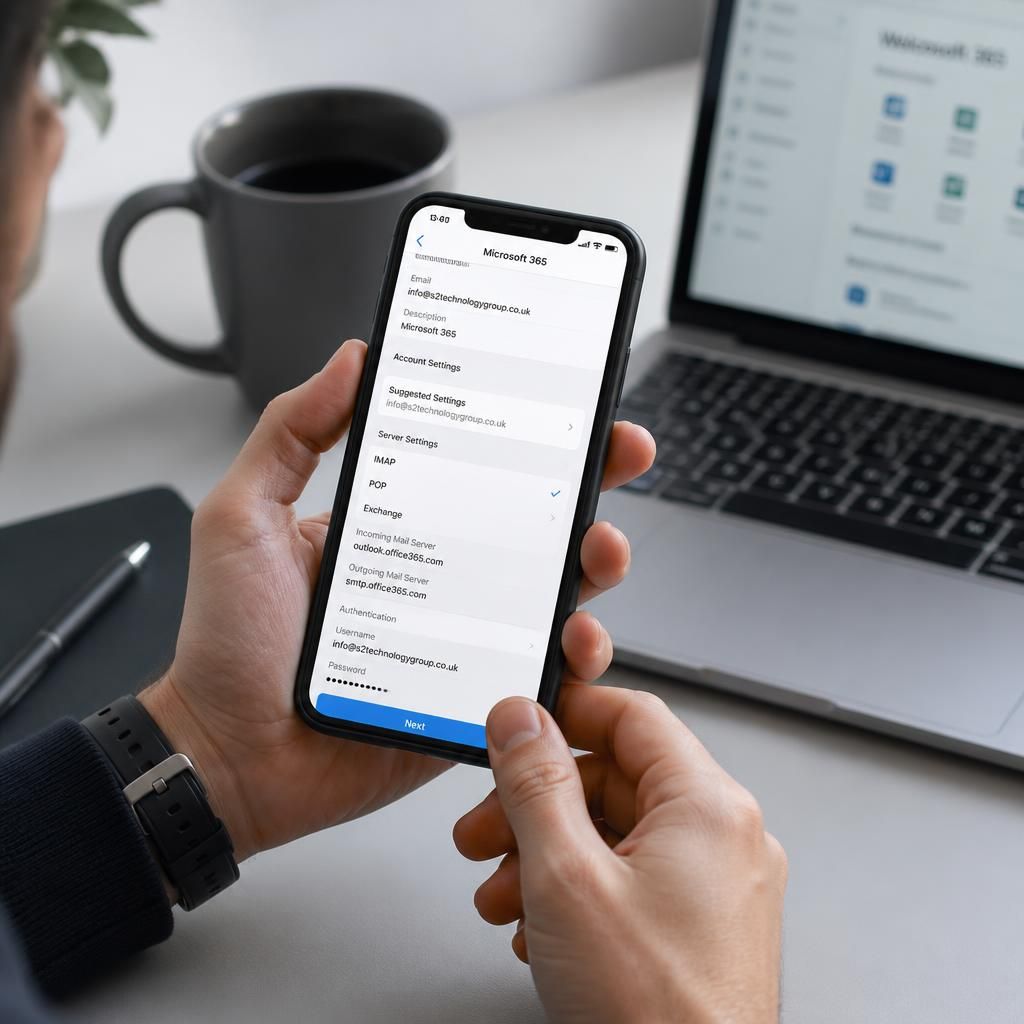
Mobile authentication is a separate part of a Microsoft 365 migration from setting up email and other applications. A device may need to be registered for multifactor authentication (MFA) in the destination environment, even if the same phone number and handset are retained. An existing authentication app entry may remain linked to the old tenant and should not be assumed to work with the new one.
Before the old environment is retired, each user should confirm that the new MFA method works and that an approved alternative sign-in method is available if required by organisational policy. Testing should cover normal sign-in, approval notifications and recovery procedures without exposing authentication codes or storing them in unsecured notes. This helps distinguish a mobile-device configuration issue from a wider account or migration problem.