
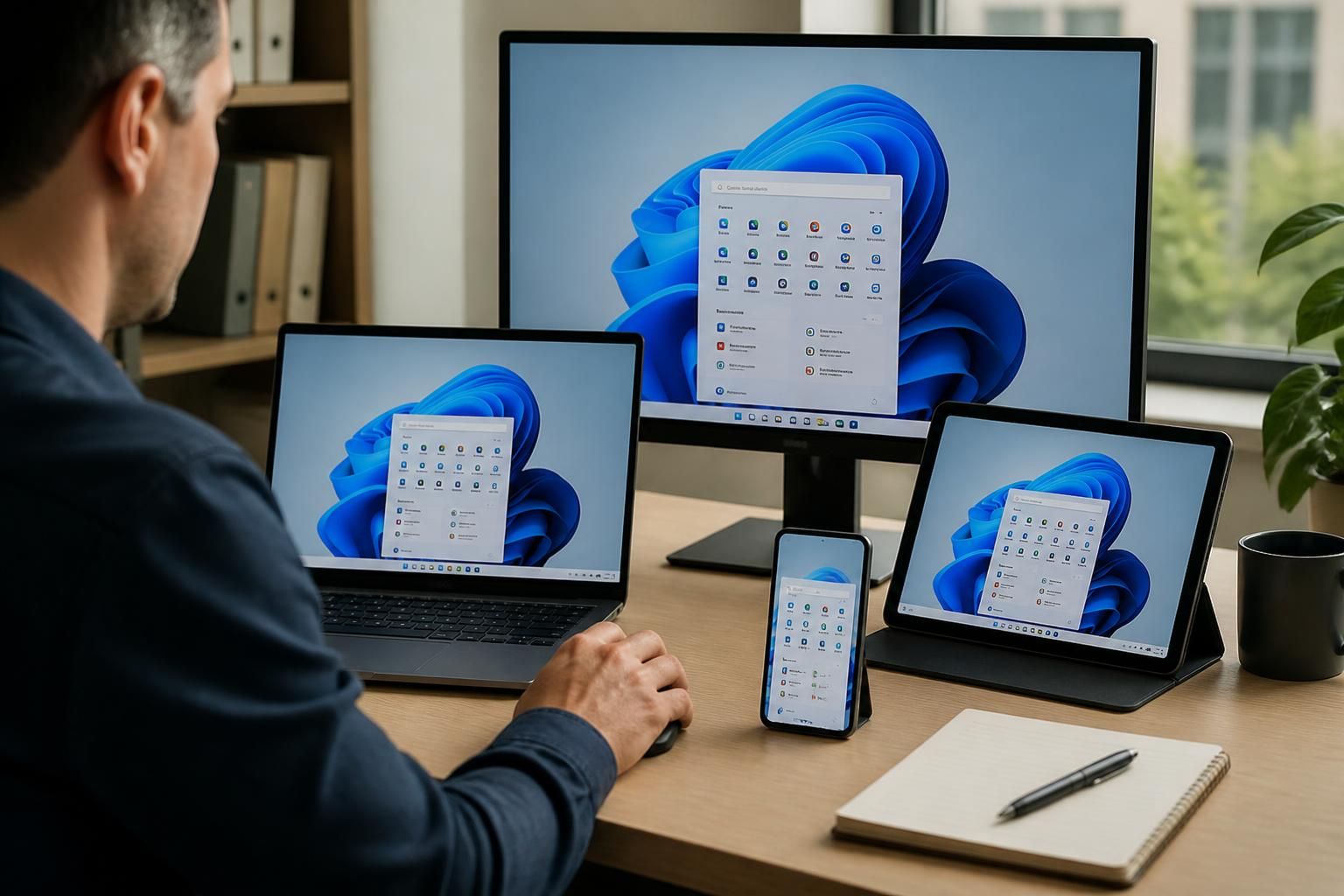
What devices can staff use to access a virtual desktop?
Staff can access a virtual desktop from compatible laptops, desktop computers, thin clients, tablets and, where suitable, smartphones. Access normally uses a secure application or web browser, with the device requirements and security controls configured to match the virtual desktop platform.
A virtual desktop can be accessed from most current business devices, provided they support the chosen access method, meet the platform’s security requirements and provide a usable experience for the employee’s role. The device generally displays the virtual workspace while applications, files and processing remain within the hosted environment.
Company-managed computers usually provide the most consistent access. A managed Windows, macOS or Linux computer can support the virtual desktop client or browser-based access, subject to platform compatibility. This approach is suitable for office staff, administrators and users who need several applications, multiple screens, document handling or specialist peripherals. Local device controls can also be used to enforce encryption, screen-lock policies, malware protection and approved software requirements.
Thin clients are purpose-built endpoints with limited local processing and storage. They can be appropriate for fixed workstations, shared offices and reception areas because the desktop environment is delivered from the virtual platform rather than installed locally. Their suitability depends on display support, peripheral requirements, network configuration and the access software supported by the virtual desktop service.
Tablets can work well for mobile staff, managers and users who mainly review information, respond to messages or use lighter business applications. Touch controls may be less practical for software designed for a keyboard and mouse, so an external keyboard, mouse or compatible docking setup may be needed. Screen size and resolution should also be considered where the user works with detailed spreadsheets, dashboards or several windows.
Smartphones may provide access for limited tasks, such as checking information or completing a short approval. They are rarely the best primary device for extended work because of their smaller screen, touch interface and reduced ability to handle complex applications. An organisation may therefore permit mobile access for selected users or functions while restricting more sensitive activities to managed computers.
Personal devices can be included in a bring-your-own-device arrangement, but access should not be based solely on whether the device can install the client or open a browser. The organisation should decide which device types are acceptable, whether the operating system remains supported, how security updates are verified and what happens to locally cached information. Multi-factor authentication, conditional access rules, session time-outs and restrictions on downloading or copying data can help separate business access from personal use.
Device suitability should be assessed against more than the operating system. Important considerations include:
- the supported client application or browser and its version requirements;
- screen resolution, display scaling and support for one or more monitors;
- keyboard, mouse, webcam, microphone, printing, scanning and other peripheral needs;
- audio and video performance for communication tools;
- the ability to apply security controls, such as device encryption, endpoint protection and automatic locking;
- the quality and stability of the connection available to the device; and
- accessibility requirements, including assistive technology and alternative input methods.
Older devices may still be technically capable of displaying a virtual desktop, but that does not make them suitable for business use. Unsupported operating systems, unpatched software, weak authentication, inadequate local security or poor peripheral support can create operational and security problems. A device review should therefore distinguish between technical access and approved access.
It is also useful to define device policies by role rather than allowing every employee to use every type of endpoint. For example, office-based users may need managed computers with full peripheral support, field staff may need tablets, and occasional mobile access may be limited to low-risk tasks. These rules can be combined with user permissions so that the sensitivity of the data and applications matches the security posture of the device.
S2 Technology Group can help small and medium-sized organisations assess endpoint requirements as part of planning a virtual desktop environment. The assessment should cover existing hardware, user roles, application behaviour, security controls and any need for remote or multi-location access before devices are approved for deployment.
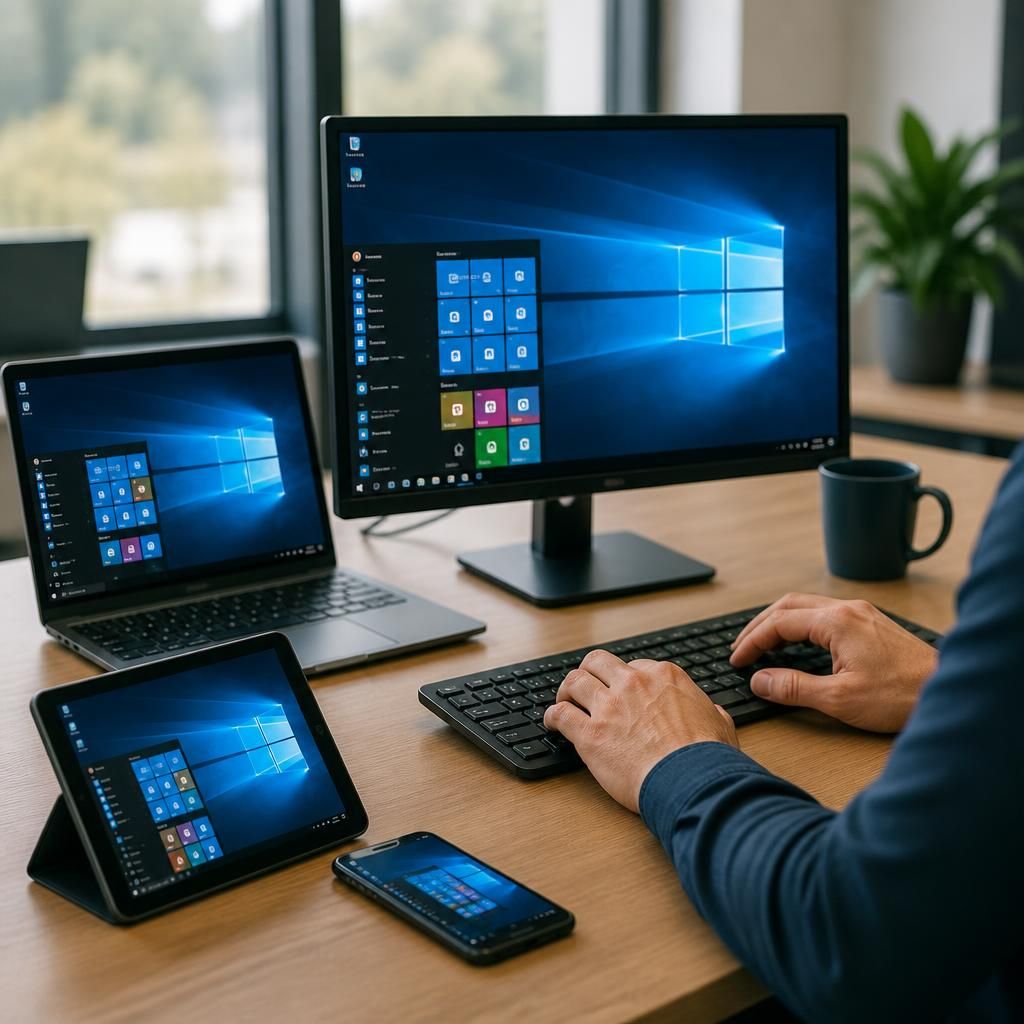
Accessing a virtual desktop normally involves two separate checks: the device must be permitted, and the person using it must be authenticated. Staff may therefore need to sign in with their business credentials and complete multi-factor authentication before the hosted desktop opens. This helps ensure that access is linked to an individual user rather than simply to a laptop, tablet or other endpoint.
Shared or communal devices need additional care. Each user should start an individual session, avoid saving credentials in the browser or access client, and sign out fully when finished. The organisation can then apply the user’s normal permissions while reducing the risk of the next person viewing an active session or accessing the wrong virtual desktop.