
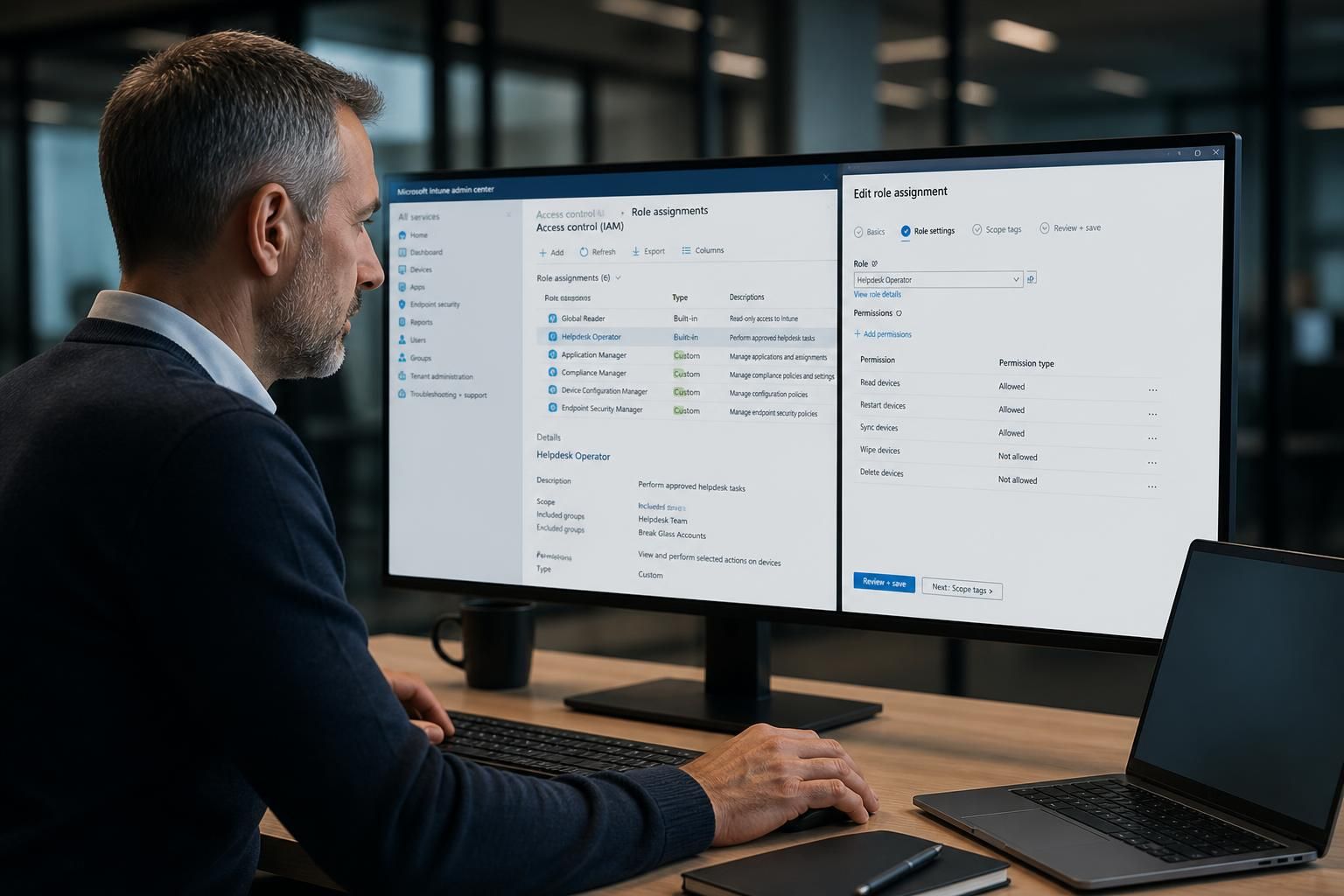
How does Intune role-based access control work?
Intune role-based access control (RBAC) limits what each administrator can view and manage by assigning predefined or custom roles with specific permissions and scope tags. This allows organisations to separate responsibilities, restrict access to relevant users or devices, and apply least-privilege administration across device, application and policy management.
Intune RBAC works by evaluating an administrator’s assigned role, the permissions in that role and the resources included in its scope. An administrator can perform an action only when the role grants the required permission and the target device, user, application or policy is within the assignment’s scope.
The main components are:
- Role definition: a collection of management permissions, such as viewing device information, creating compliance policies, deploying applications or wiping a device.
- Role assignment: the link between a role, the administrators who receive it and the resources they are allowed to manage.
- Scope group: a group of users or devices to which the assignment applies.
- Scope tag: a label used to limit which Intune objects an administrator can see or manage, such as policies, applications and configuration profiles.
These components allow permissions and resource boundaries to be controlled separately. For example, a support team might have permission to view device information and perform approved device actions, but only for devices belonging to a particular department. A security administrator might manage compliance settings across the organisation without receiving permission to change application deployments.
Role definitions determine the available actions
Each role contains one or more permissions. A permission normally covers a category of Intune activity and may include actions such as read, create, update, delete, assign or execute. The exact actions depend on the resource involved. Reading device details is different from retiring a device, while viewing an application is different from changing its assignment.
Intune includes built-in roles for common administrative responsibilities. These provide a starting point for established functions, but they should still be reviewed before assignment. A built-in role may contain broader permissions than a particular team requires. Where a suitable built-in role is not sufficiently narrow, a custom role can be created with selected permissions.
Custom roles are useful when responsibilities do not align neatly with a standard administrative function. A role for application management, for instance, could include permissions to create and update applications and assignments while excluding device wipe, compliance-policy changes and other unrelated operations. The role should be tested against the tasks the team actually performs rather than designed around a job title alone.
Assignments connect people to resources
A role has no practical effect for an administrator until it is assigned. An assignment identifies the administrator or administrator group, the role definition and the scope groups that contain the users or devices covered by that assignment. Using groups makes administration easier to govern because membership can be reviewed independently from the role itself.
Scope groups and scope tags serve different purposes. A scope group identifies the users or devices an administrator may act upon. A scope tag identifies Intune objects that the administrator may access. For example, a regional administrator could be assigned a scope group containing devices in one business unit and a scope tag applied to the policies and applications belonging to that unit. The two controls can be combined to prevent access to both unrelated endpoints and unrelated management objects.
Assignments can also be configured to apply to all users and devices where that level of responsibility is justified. This is appropriate for carefully controlled central functions, but broad assignments should be deliberate, documented and limited to administrators who genuinely need organisation-wide access.
How Intune evaluates a request
- The administrator signs in and requests an operation, such as opening a device record, editing a configuration profile or initiating a device action.
- Intune identifies the administrator’s role assignments and checks whether one of the assigned roles includes the required permission.
- It checks whether the target resource falls within the relevant scope group and, where applicable, whether the object has a matching scope tag.
- If the permission and scope requirements are satisfied, the operation is available. If either requirement is missing, the administrator may be unable to see the object or may see it without being able to change it.
This explains why an administrator may be able to find a device but not retire it, or may be able to view an application but not edit its deployment. Visibility and action rights are separate aspects of access control.
RBAC and least-privilege administration
Least privilege means granting the minimum access needed for a defined responsibility. In Intune, this is best implemented by separating read access from change access, limiting high-impact actions and assigning narrowly defined groups. A helpdesk role might be able to read hardware and enrolment information, while a more restricted operational role can perform selected actions such as synchronising a device. Actions that remove access, erase data or alter security controls should be reserved for appropriately authorised roles.
Separate roles can also support segregation of duties. For example, one team may prepare an application, another may approve its deployment and a central administrator may control assignments affecting the wider estate. Whether this separation is practical depends on the organisation’s processes, but Intune RBAC provides the administrative boundaries needed to implement it.
Planning and maintaining Intune RBAC
- Map each administrative task to the minimum required permission before creating assignments.
- Prefer groups with clear ownership and membership rules rather than assigning roles individually wherever practical.
- Use scope tags consistently for departments, locations or operational teams, and document what each tag represents.
- Keep powerful built-in roles for cases that genuinely require their full permission set.
- Review nested group membership, role assignments and scope changes because access can expand when group membership changes.
- Test new roles with representative administrator accounts before applying them to production teams.
- Review access after organisational changes, changes in job responsibilities and the introduction of new device or application-management processes.
When diagnosing an access problem, check the role assignment first, then the permission within the role, the administrator’s group membership, the target device or user group and the scope tag on the relevant Intune object. Also check whether the requested operation is supported by that role. Assigning a wider role should not be the first troubleshooting step, because it can conceal an incorrect scope or create unnecessary privileges.
Intune RBAC governs administrative access to Intune resources; it does not replace sign-in controls, multifactor authentication, privileged identity management or wider identity governance. Those controls should work alongside RBAC so that an administrator is both correctly authorised for the task and subject to appropriate protections when using administrative access.

Intune RBAC does not automatically follow ownership relationships. Being the owner of a user group, application or device does not by itself give someone permission to administer that resource. Administrative access comes from an explicit Intune role assignment and its associated scope.
This distinction is important when designing access for growing organisations. A department manager may own a group for business purposes without being able to change its device policies, while an IT administrator may manage those policies without owning the group. Keeping ownership and administrative authority separate reduces accidental privilege and makes responsibility easier to review.
- Group ownership does not automatically create Intune administrative rights.
- Device users do not gain permission to manage their device records through ordinary assignment or ownership.
- Application ownership does not automatically allow changes to deployments or configuration.
- Administrative rights should be granted through documented role assignments linked to defined responsibilities.
Review your Intune RBAC requirements with S2 Technology Group
Discuss your Intune RBAC requirements with S2 Technology Group to identify appropriate administrative boundaries for your organisation. We can help you review how role assignments, scope groups and scope tags should support your wider IT and security controls.