

How does Intune manage macOS devices?
Microsoft Intune manages macOS devices by enrolling them into an organisation’s device management service and applying configuration, application, security and compliance policies. Administrators can monitor device status, control access to business resources and manage settings centrally rather than configuring each Mac individually.
Microsoft Intune manages macOS devices through Apple’s built-in mobile device management framework. After a Mac is registered, Intune can deliver approved settings, deploy software, enforce security requirements, assess device state and provide administrators with a central view of the endpoint.
How a Mac is enrolled
There are several enrolment routes, and the appropriate method depends on ownership and how much control the organisation requires. A business-owned Mac can be linked to Apple Business Manager and assigned to Intune through Automated Device Enrolment. This allows management to begin during the Mac’s initial setup, before the user reaches the desktop. The organisation can require management, prevent the user from removing the management profile and present company-specific setup instructions.
Users can also enrol eligible Macs through the Intune Company Portal application. This approach is commonly used where the user needs to authenticate and approve management on an existing device. Administrators should define whether the device is corporate-owned or personally owned, because ownership affects the available controls, privacy expectations and permitted management actions.
Configuration profiles and device settings
Intune applies macOS settings through configuration profiles. These profiles can control areas such as:
- Wi-Fi and virtual private network connections
- Passwords, screen lock and account requirements
- Certificates used to authenticate users or devices
- Firewall and network protection settings
- Privacy permissions for applications that need access to files, the camera, microphone or other protected resources
- Restrictions on features, services and system changes
Profiles are assigned to groups of users or devices rather than configured individually. This supports consistent standards while allowing separate policies for departments, locations, job roles or different Mac models. Administrators must plan profile assignments carefully because conflicting settings can produce unexpected results. Clear naming, limited profile overlap and documented exclusions make troubleshooting easier.
Application deployment and control
Intune can make approved macOS applications available in the Company Portal or install required applications automatically. It can also manage application configuration where the software supports recognised settings. This provides a controlled way to distribute business tools and reduce reliance on users finding and installing software themselves.
Application management is not limited to the initial installation. Administrators can assign updates, remove software that is no longer authorised and review whether required applications are present. macOS installers, package files and scripts need to be tested against the relevant operating system versions before broad deployment. Intune is a management platform, so it does not remove the need to check application compatibility, licensing and vendor support.
Security controls on macOS
Security policies can require settings such as a strong local password, automatic screen locking, encryption and enabled protective services. FileVault encryption is particularly important because it protects data if a Mac is lost or stolen. Organisations should plan recovery-key storage and access before enforcing encryption, ensuring that authorised administrators can recover a device without exposing the key unnecessarily.
Intune can also use configuration profiles and security settings to manage privacy permissions, firewall behaviour and other macOS protections. These controls should be based on the applications the business actually uses. Overly broad permissions increase risk, while overly restrictive settings can stop legitimate software from working.
Compliance and access decisions
Compliance policies evaluate whether a Mac meets the organisation’s requirements. Checks may include the presence of a passcode, encryption status, minimum operating system version, management state and other configured conditions. A device can then be classified as compliant or non-compliant.
Compliance information can contribute to access decisions for Microsoft 365 and other protected business resources when the organisation has configured the relevant identity and access controls. A non-compliant device may be warned, given a grace period or prevented from accessing selected resources, depending on the policy design. Compliance should therefore be tested with representative user accounts before enforcement, particularly where employees work across several devices.
Inventory, reporting and remote actions
Intune collects device information such as hardware details, operating system data, ownership, user association and management status. This inventory helps administrators identify outdated Macs, confirm that required software is installed and investigate policy issues. Reports can also show which devices have failed to receive a profile or application.
Administrators can initiate actions such as synchronising a device, retiring management, removing company data or wiping a Mac. The correct action depends on whether the device is being reassigned, lost, replaced or removed from the organisation. A wipe is destructive, whereas a retire action is intended to remove organisational management and data without treating the Mac in the same way as a factory reset. These actions require clear permissions and a documented process.
What good macOS management requires
Effective Intune management depends on more than switching on enrolment. The organisation needs an ownership model, defined security baselines, tested application packages, sensible group assignments, operating system update planning and a process for handling exceptions. Apple identity, local administrator access, recovery keys and privacy permissions should also be considered during implementation.
S2 Technology Group can help businesses assess how Intune fits their existing Microsoft 365, security and support arrangements, then plan a macOS management structure that is practical for their users and devices.
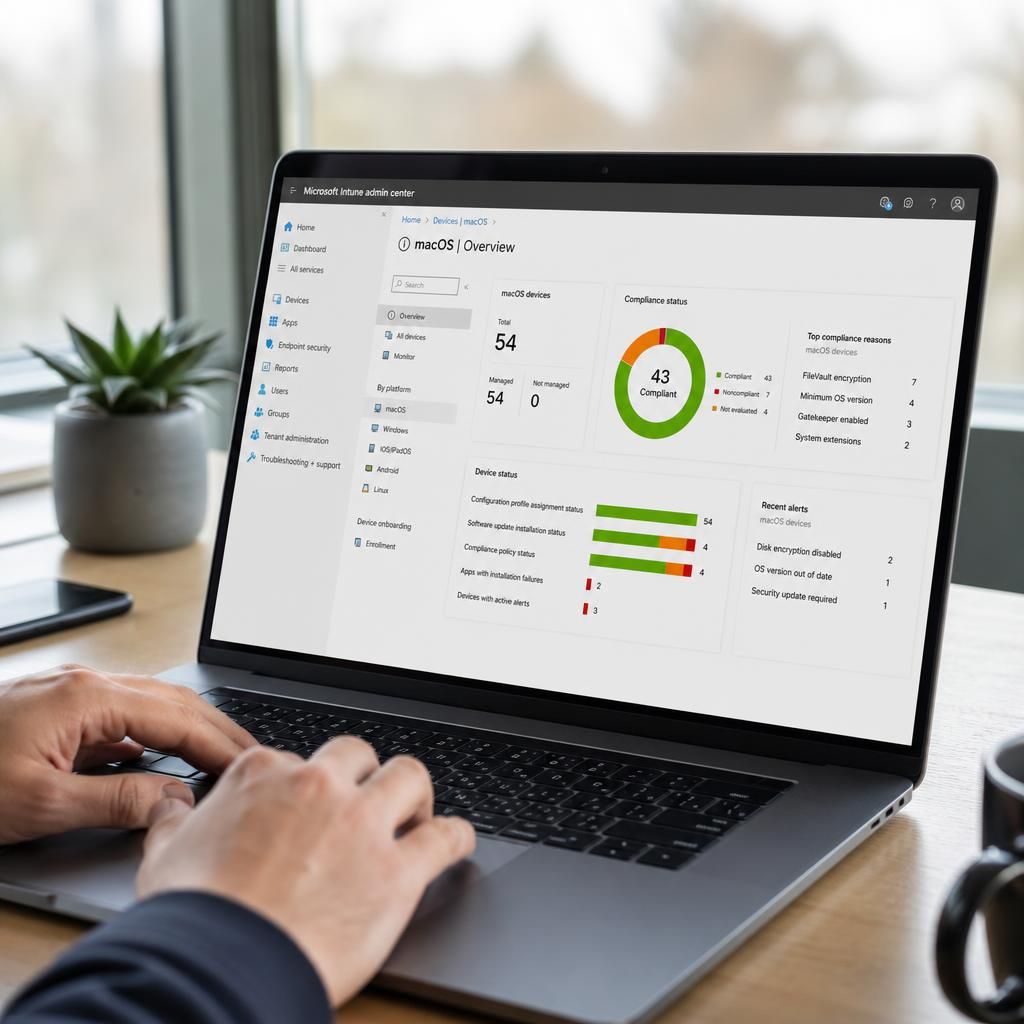
Intune manages macOS updates by applying software update policies that control how and when devices receive operating system updates. Administrators can define behaviours such as delaying selected updates, displaying notifications and requiring installation by a set deadline, helping the organisation balance security requirements with application compatibility.
A practical policy normally separates Macs into testing and production groups. Updates can first be evaluated on representative devices, including the models and applications used by the business, before wider deployment. Intune reporting can then help identify devices that remain behind the required update level or have not applied the policy. This gives administrators a structured way to manage update risk without relying on each user to choose suitable settings.