What equipment is needed for a remote IT support session?
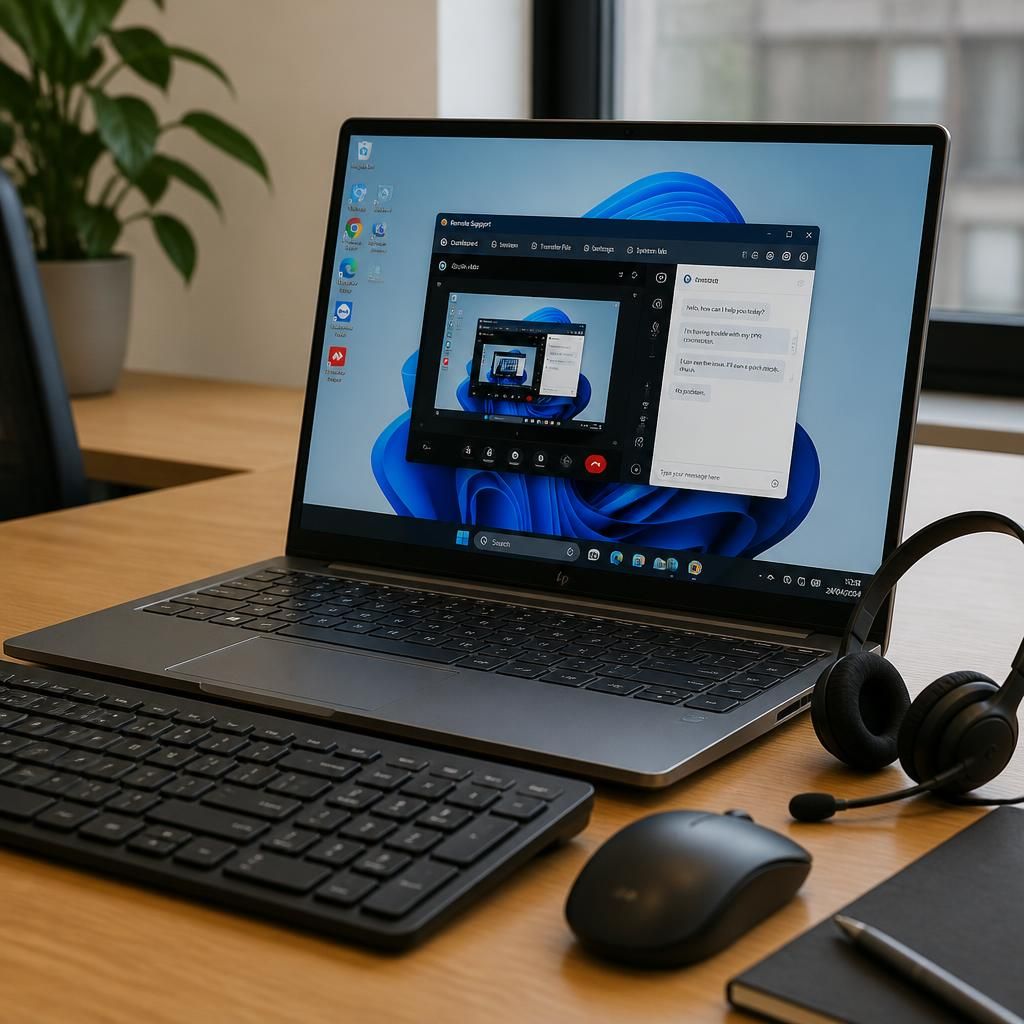
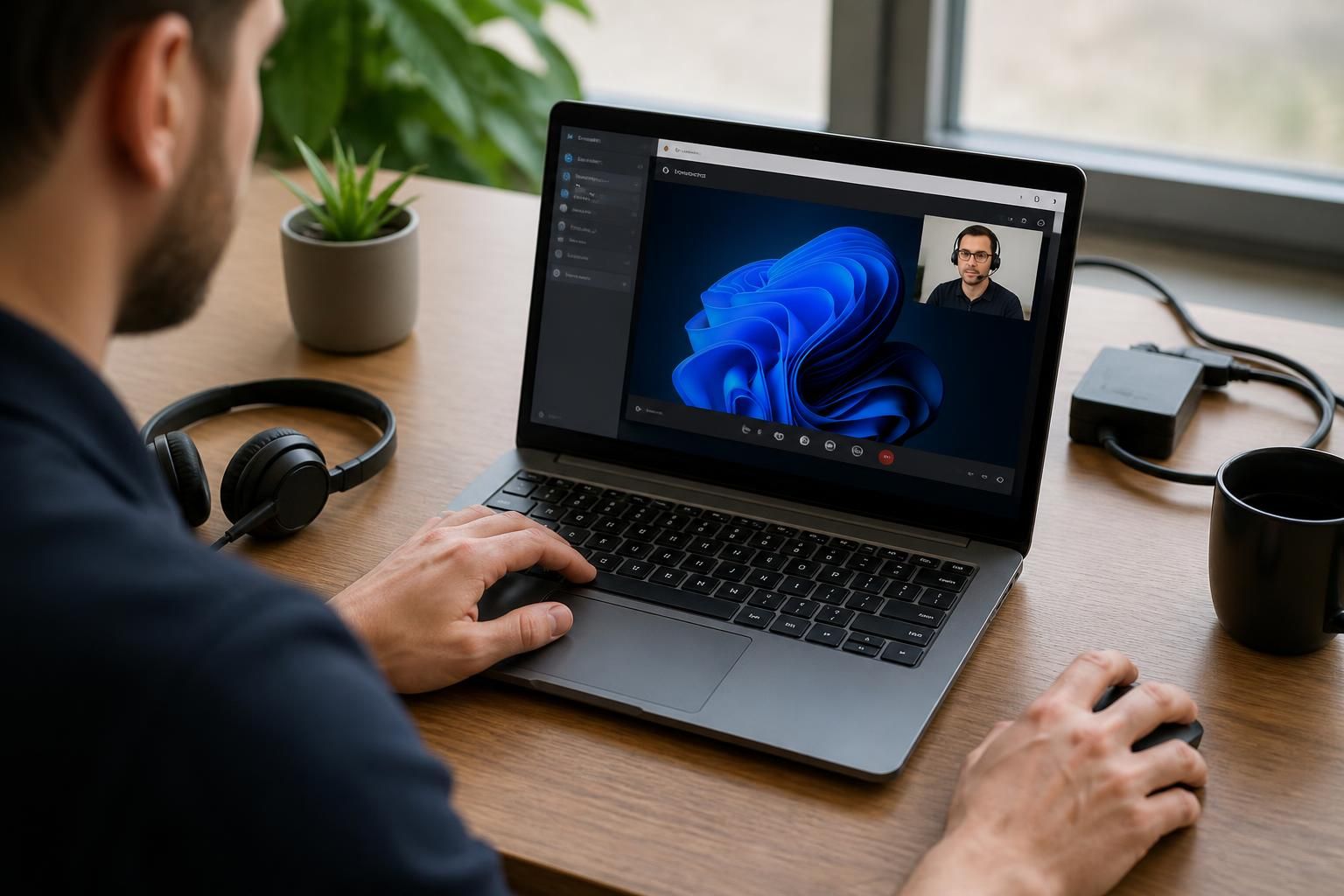
A remote IT support session usually needs the affected computer or device, a stable internet connection and a power supply. The user may also need to approve a secure remote-access tool and provide appropriate permissions, while a phone can be useful for communication if the device cannot connect.
Beyond the core computer and internet connection, most remote IT support sessions benefit from a few practical items rather than specialist hardware. The exact requirements depend on whether the technician is diagnosing the user’s workstation, a peripheral, or a wider network problem.
- Keyboard and mouse: These should be connected and working if the issue involves input, accessibility, login controls or a docking station.
- Headset or microphone: Useful when the session includes spoken guidance, particularly where the technician needs the user to carry out several checks.
- Webcam: Usually optional, but it can help show the physical layout of cables, ports, screens, printers or other equipment when a visual inspection is relevant.
- Docking station and display equipment: If the fault affects multiple monitors, a laptop dock or external accessories, those items should remain connected so their behaviour can be assessed accurately.
- Relevant network equipment: For connectivity faults, the router, wireless access point, firewall or network switch may form part of the investigation. A technician can examine settings remotely where access is available, but someone at the premises may need to identify cables, indicator lights or device labels.
The computer itself must also support the remote-access method being used. This may involve an approved application, a web browser or a pre-installed management agent. The operating system should be running normally enough to launch the tool, display authorisation prompts and allow the technician to view diagnostic information. If the device cannot start, has no usable display or cannot load the required software, remote assistance may be limited.
For business equipment, it is useful to have the affected device’s asset name, location and user details available. This helps distinguish a workstation from a server, shared computer or network appliance and reduces the risk of working on the wrong system. Do not prepare by writing down or sending passwords for the technician; authentication should use the organisation’s approved access process.
Before the session, save open work and close documents containing sensitive information that is not relevant to the fault. Disconnecting unrelated peripherals is not always necessary, because an attached printer, monitor, docking station or USB device may be part of the problem. Instead, note which accessories were connected when the issue occurred and leave the relevant configuration unchanged unless instructed otherwise.
Where a fault affects several users or sites, the useful equipment may extend beyond one workstation. A network diagram, labelled switch or access-point information and the relevant server or storage hardware can help establish the scope of the issue. Remote support can assess configuration and software conditions, but damaged cabling, failed power supplies or physically inaccessible equipment may still require an on-site inspection.
A remote IT support session does not usually require specialist hardware. The important consideration is whether the affected equipment can run the approved support software and communicate through the organisation’s network. In more complex environments, existing remote-management hardware or a console connection may be needed to reach a server or network appliance that cannot load a standard support tool. These arrangements are normally configured as part of the IT infrastructure rather than supplied by the individual user.