How does a remote IT support session begin?
A remote IT support session usually begins when the business reports an issue and an authorised user agrees to a support connection. The technician confirms the device and problem, explains what access is required, obtains consent, and then starts a secure remote session to investigate.
A remote IT support session begins with a controlled intake and connection setup: the issue is recorded, the correct device and user are identified, and a suitable support method is selected before the technician interacts with the system. This initial stage establishes scope, access controls and a clear starting point for the investigation.
The usual sequence includes the following steps:
- Request details are captured. The business provides a description of the symptoms, the affected user or users, the device involved and any relevant error messages. Useful context can include when the issue started, whether anything changed recently and whether the problem affects one person or several.
- The support method is selected. An attended session is generally used when a user is present to start and observe the connection. A managed support arrangement may use an approved remote management agent already installed on the device. The method should match the device, operating system, type of fault and organisation’s security policy.
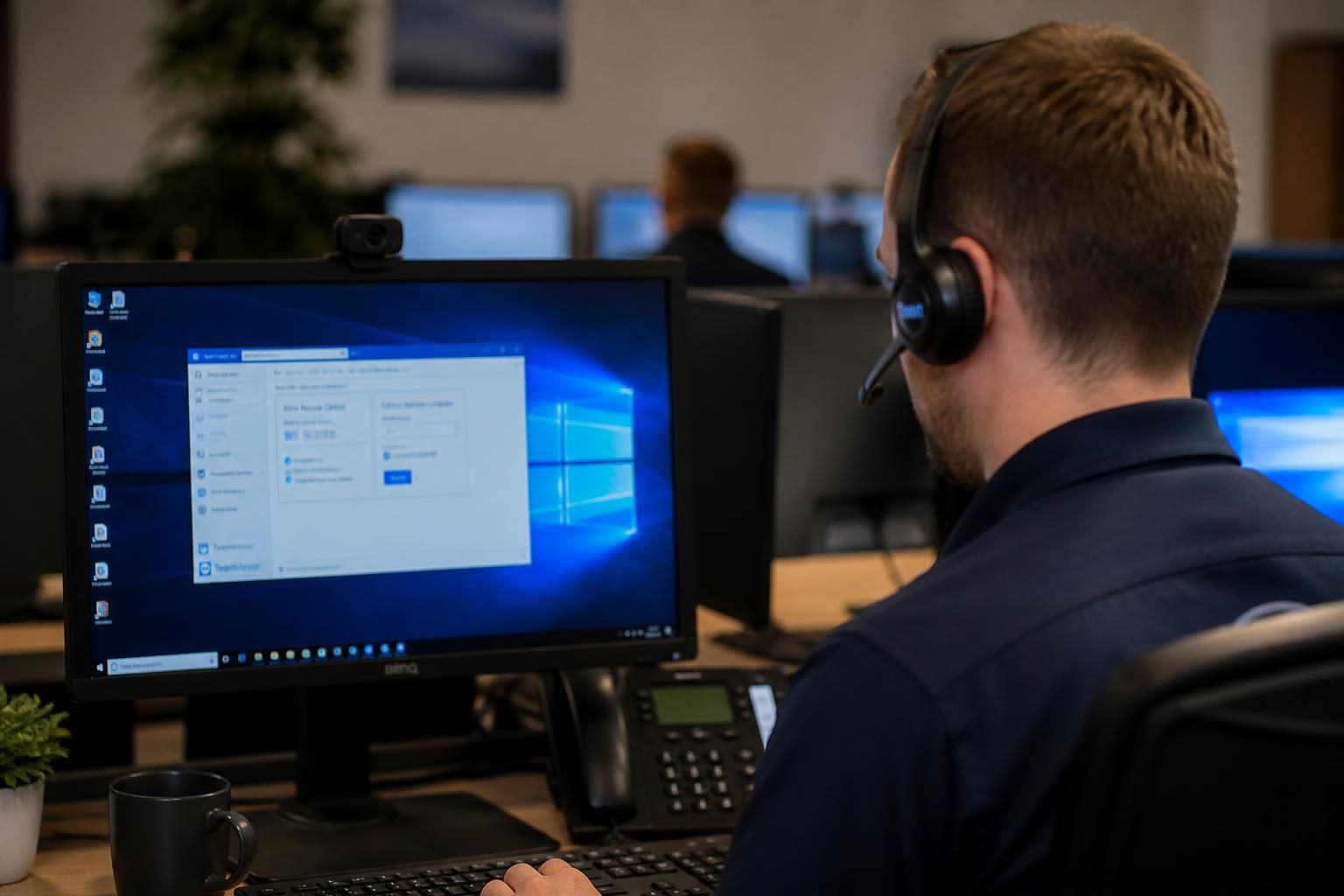
- The user starts the connection process. For an attended session, the user may open an approved support application, visit a designated support page or run a temporary support utility. A session code, invitation or other connection instruction links the technician to the intended device. The user should obtain the software only through a trusted support channel and check that the request matches the support case.
- The device establishes a protected connection. The remote support tool connects the technician’s console to the selected device using its built-in authentication and encryption controls. A connection indicator normally shows when the session is active. The user should be able to see when remote control or screen viewing is taking place.
- Access is limited to the task. The technician may initially have viewing access and then request control or additional permissions only where the investigation requires them. Administrative actions, software changes and access to sensitive areas should be explained before they are carried out. If elevated rights are necessary, they should be granted through the organisation’s normal credentials and approval process rather than by sharing passwords informally.
- The starting condition is checked. Once connected, the technician reviews the device’s current state before making changes. This can include confirming the operating system, logged-in account, network connection, relevant applications and visible error messages. Establishing this baseline helps distinguish the original fault from any issue introduced during troubleshooting.
The user has an important role at the beginning even when the technician performs the technical work. They can confirm which actions are acceptable, identify files or applications that must not be opened, explain business impact and point out anything that changed immediately before the fault appeared. For devices containing confidential information, the user should close unrelated documents and keep the session focused on the agreed task.
A properly started session also records basic case information, such as the device identifier, the person authorising access, the reason for the connection and the time the session was initiated. This creates a useful link between the request and the technical activity, particularly where a business needs an audit trail or operates under internal security procedures.
Before the technician begins troubleshooting, both sides should be clear about the scope of the work and how the connection will be ended. If the tool offers file transfer, clipboard sharing, background access or other capabilities that are not needed for the task, those functions should remain disabled or unused. This keeps the opening stage proportionate and reduces unnecessary exposure of business data.
For S2 Technology Group, this structured approach supports remote IT support for small and medium-sized organisations that need technical assistance without giving unrestricted access to business systems. The precise screens and connection method can vary by device and support arrangement, but the principles remain the same: identify the right system, use an approved connection, limit permissions and establish a documented basis for the work.
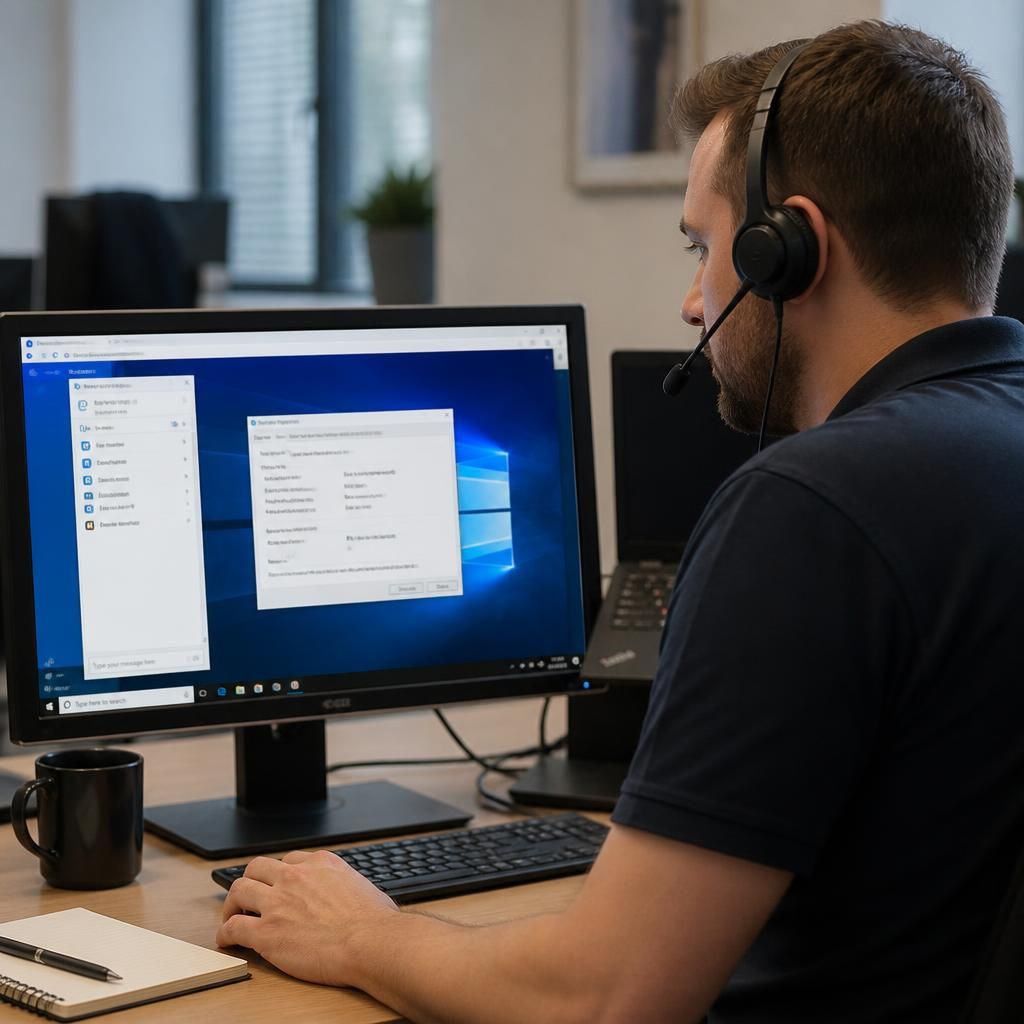
Before a remote connection is opened, the technician should establish that remote troubleshooting is suitable for the reported fault. A session may be appropriate for application errors, account issues, configuration problems or device diagnostics, but it is not the right starting point when the device has no power, has suffered physical damage or cannot connect to the required network.
This initial suitability check helps prevent an unnecessary connection and identifies any information the technician needs before proceeding. The technician may clarify:
- whether the device is powered on and usable;
- whether the user can connect to the internet or business network;
- whether the fault affects a specific application, account or device function; and
- whether the issue involves confidential content or actions requiring a separate approval.
If the fault is suitable for remote investigation, the session can begin with the appropriate level of access. If not, the case should be directed towards another form of support rather than forcing a remote connection that cannot address the underlying problem.